
Before you start
You need Administration permission for the company. Check the company name before changing access or settings.
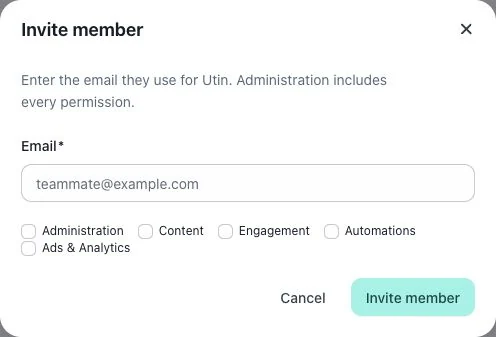
1. Review the permission groups
Open Company → Team and use How do permissions work?. Review Administration, Content, Engagement, Automations and Ads & Analytics before selecting access.
Administration includes every permission and selects the other groups automatically.
2. Choose the person and access
Locate the intended member. Set only the permission groups their role needs. These are company-level permissions, so consider all workspaces in that company.
3. Check each saved change
The Team page states that changes save as you click. Do not toggle permissions merely to preview them. Check the resulting values and any error before leaving.
Check the result
Have the colleague reopen the relevant page to confirm access. Their authorized AI integrations use their company and workspace permissions too.
If something does not work
If a control is unavailable, check whether you can administer the company and whether the member has a protected ownership role. Do not remove another administrator to troubleshoot a missing menu.