
Before you start
You need Administration permission for the company. Check the company name before changing access or settings.
1. Open the company team
Choose the company and open Company → Team. Check whether your colleague is already a member or has a pending invitation before sending a new one.
2. Invite the colleague
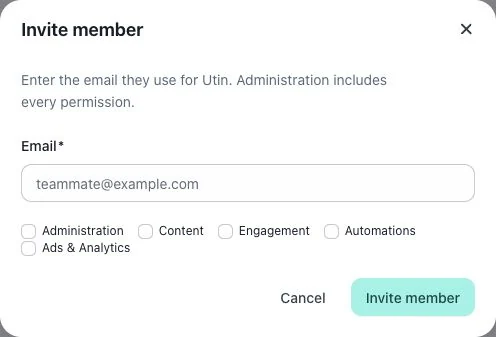
Choose Invite member, enter the intended Email, select appropriate permissions in the invitation form and submit. Ask the colleague to accept using that email address.
3. Remove access when needed
Locate the exact member and use Remove. Review any confirmation and the company context. Removing a team member is different from deleting that person’s entire Utin account.
Check the result
Check whether your colleague appears as invited or as a member. They need to accept the invitation before they can use their access.
If something does not work
If access is missing after acceptance, verify the signed-in email and permissions. Use a pending invitation’s available controls to manage it rather than repeatedly creating new invitations.