
Before you start
You need Content permission and a connected account to publish from. Have your text, images or video ready, and make sure you have permission to use them.
1. Choose the account
Open Posts → Create post. Choose the intended Facebook Page. You can publish text or a link without adding media; for an album, use images rather than mixing images and video. Choose Continue.
2. Add content and choose settings
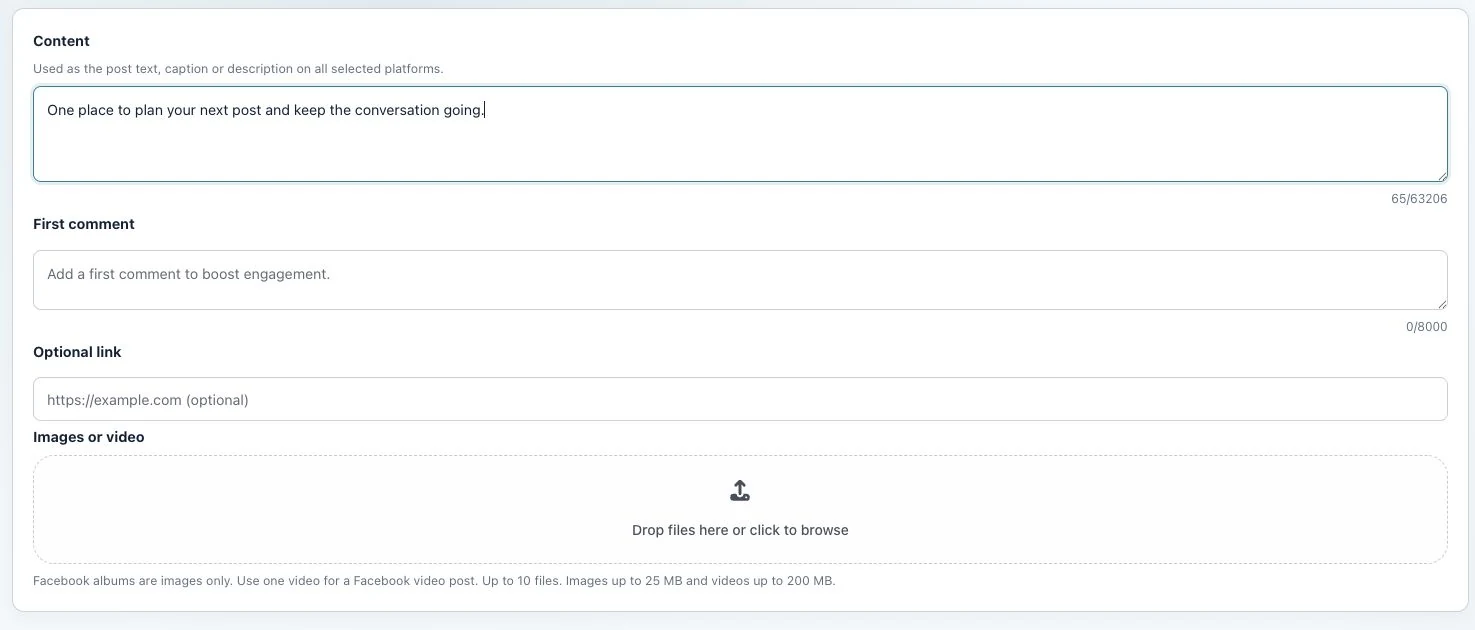
Add your message in Content. If sharing a website, use Optional link and check the destination. For media, follow the limits displayed in the composer and wait for upload completion.
3. Choose when to publish
Select Publish now and click Publish to publish now. To publish later, choose Schedule for later, set the date, time and Timezone, then click Queue. Choose Create draft to save without publishing or scheduling.
Check the result
Check the status for each account. Find published posts under Published and scheduled posts in Queue Calendar. If a post is still processing, publication has not yet been confirmed.
If something does not work
If you cannot click the button, read the error message and check your media, required fields and selected accounts. If the result is unclear, check whether the post already appears on that platform before trying again. Avoid publishing a second copy to accounts where it is already live.