
Before you start
You need Engagement permission and access to the connected account. Choose the right workspace before opening conversations or comments.
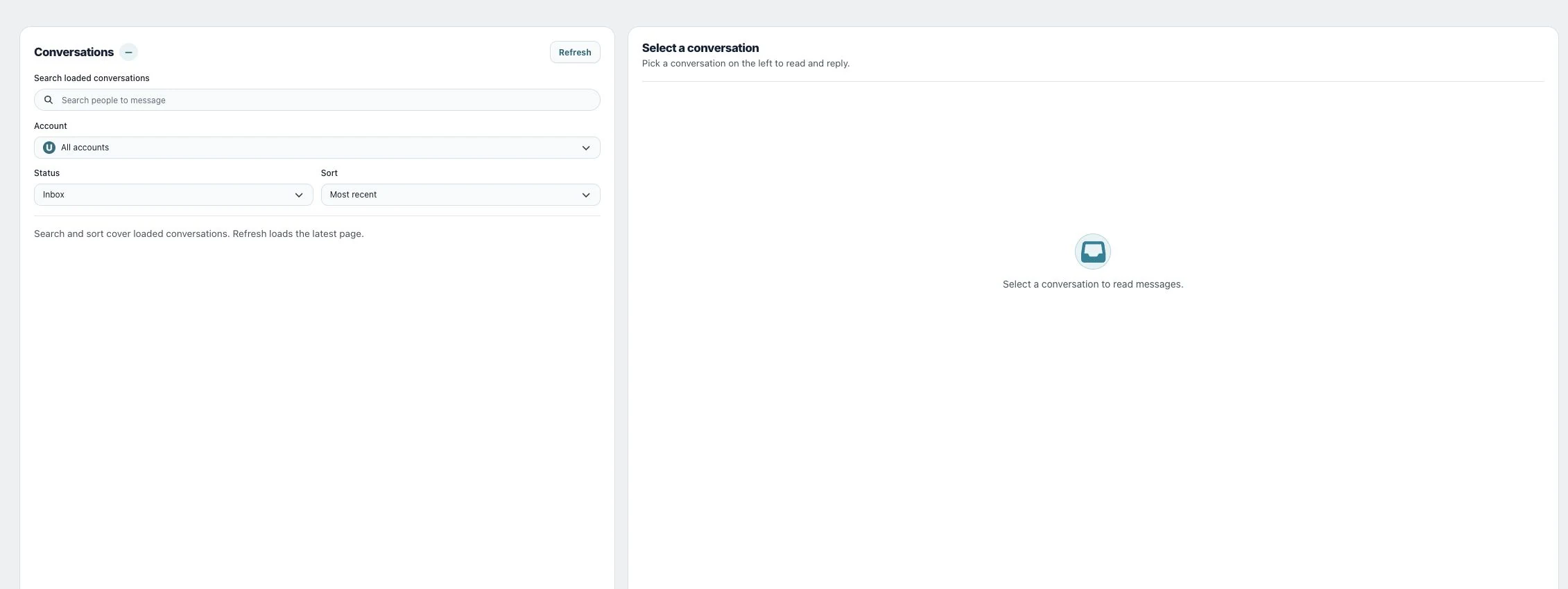
1. Open a contact
Select its conversation in Inbox Messages. Use the tag button beside the contact name or Conversation actions → Manage tags.
Tags become available after the person sends an inbound message.
2. Add a useful tag
Review Current tags, enter a short label under Add a tag and choose Add tag. Use a consistent name such as lead or customer. Everyone in the workspace sees the same tags.
3. Use it in automation
Choose the tag in a broadcast audience or as a sequence’s Trigger tag. Check the sender account too. Adding a tag used by an active sequence can start sending automatic messages to that contact. Check what the tag is used for before applying it.
Check the result
Reopen Manage tags to verify the saved label, then review the estimated or eligible audience in the automation. Tag membership does not override messaging eligibility.
If something does not work
If Manage tags is disabled, select a supported contact and check permissions. If an audience is empty, compare the exact tag, account and messaging window.