
Before you start
You need Ads & Analytics permission in Utin and access to the ad account you want to use. Check that you have selected the right company, workspace and ad account.
1. Open advertising connections
Choose the workspace and open Add Connections → Ad platforms. Locate Meta Ads. Permission to publish regular posts does not automatically give you access to an ad account.
2. Authorize the right account
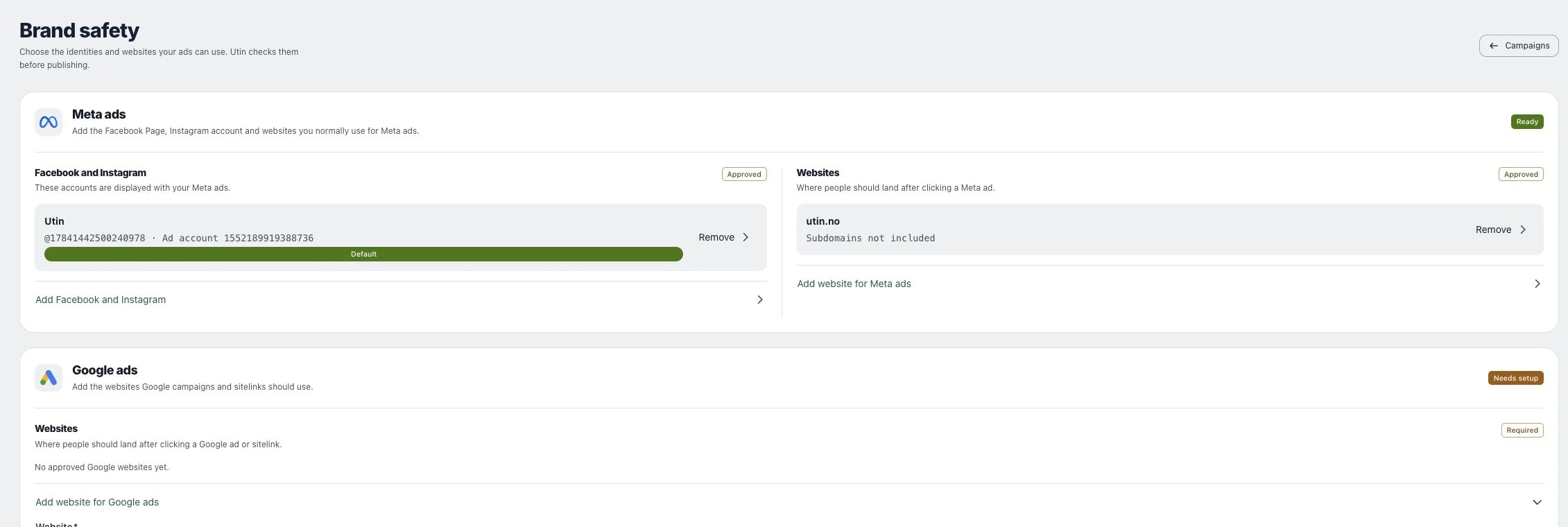
Use Manage setup on the Meta Ads card to open Brand safety. Follow the Facebook and Instagram identity setup and select the ad account and Page you administer.
3. Review readiness
Return to the provider’s account or setup view and inspect its status. Confirm the account name and currency before opening a launch form or existing campaign. Complete any identity or website prerequisite shown by Utin.
Check the result
Check that you can select the right ad account. Campaigns still need to be created and approved before ads can run.
If something does not work
If an account is missing, verify your role in the provider’s business account and the login used during authorization. Disconnecting Utin does not stop campaigns already running with the provider.