
Before you start
You need Automations permission and a connected Facebook or Instagram account. Finish your message and check its links before turning on the automation.
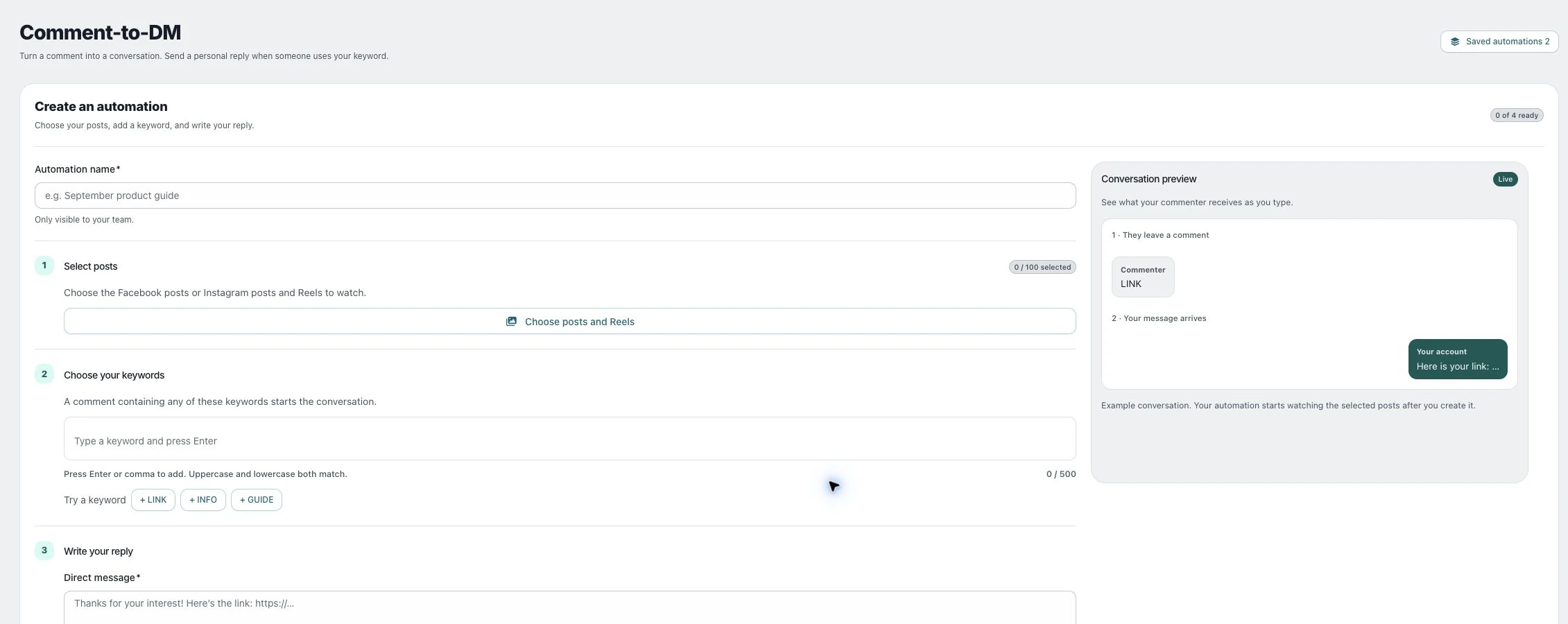
1. Name the automation
Open Automations → Comment-to-DM and enter Automation name. Use a name that identifies the offer and posts, such as September guide. This name is only visible to your team.
2. Select posts and Reels
Choose Choose posts and Reels, find the intended Facebook or Instagram content and select the posts to watch. Check each account and post; the automation does not automatically apply to every future post.
3. Add clear keywords
Enter a word in Trigger keyword and press Enter or comma to add it. A comment containing any configured keyword can trigger the conversation, regardless of uppercase or lowercase. Avoid ordinary words that could match unrelated comments.
4. Write the response
Fill in Direct message and, if wanted, Public comment reply (optional). Check spelling and open the destination link separately. Use the conversation preview to distinguish the commenter’s text from your private reply.
5. Activate and test
Choose Create automation only when you want it to start watching the selected posts. Arrange a test comment with the intended keyword and check both the actual conversation and the saved automation’s counters.
Check the result
Find the automation under Your automations and check that it is Active. A count of DMs sent is not proof that a recipient read the message; check the actual test conversation.
If something does not work
If nothing happens, check the selected post, account, keyword and Active status. If the message fails, read the error and check the account connection. Meta can restrict who you can message even when a comment contains the right keyword.