
Before you start
You need Ads & Analytics permission in Utin and access to the ad account you want to use. Check that you have selected the right company, workspace and ad account.
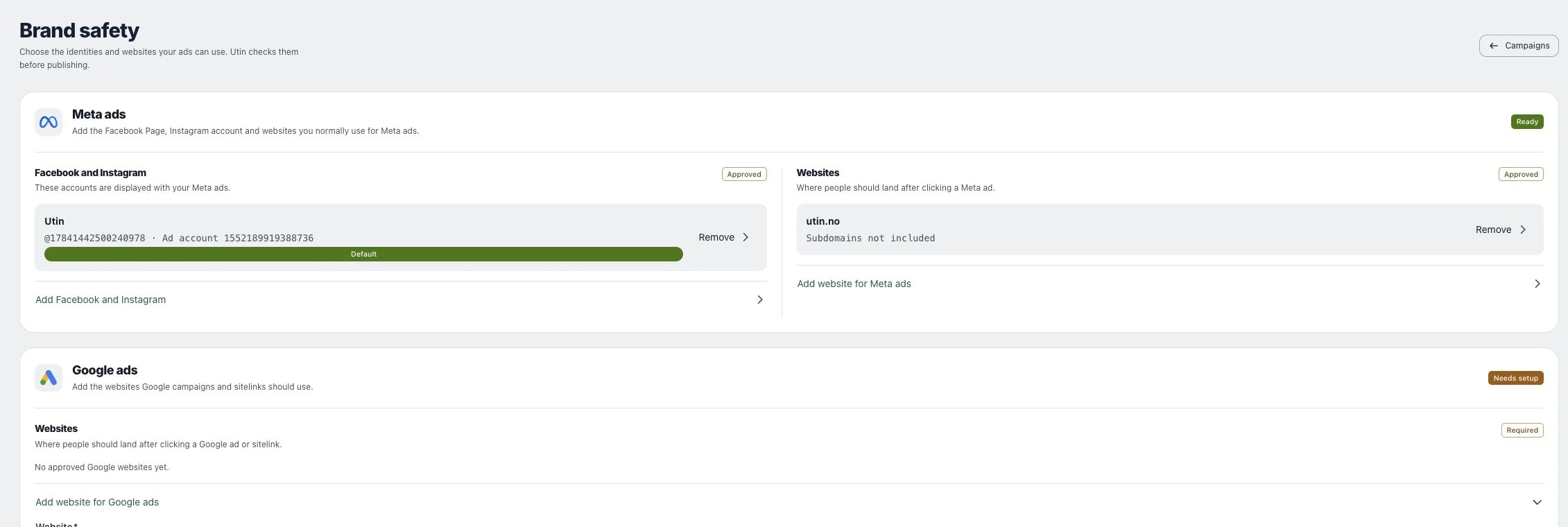
1. Open Brand safety
Go to Ads → Brand safety. Read the Meta ads and Google ads readiness states separately. A Ready Meta setup does not automatically approve a Google website.
2. Set Meta identities
Under Facebook and Instagram, choose Add Facebook and Instagram. Follow the setup to select the intended Page, Instagram identity and ad account. Review the saved identity and default indicator.
3. Approve a website
Use Add website for Meta ads or Add website for Google ads. Enter the domain or full URL under Website. Select Also allow subdomains only when those destinations should be allowed, then choose Add website.
4. Review changes before launch
Check the saved website and subdomain policy. Remove an entry only when it should no longer be approved, and review any launch that depends on it before changing the list of approved websites.
Check the result
The relevant setup section should show the approved identity or website. These settings control which identities and websites you can use in Utin. Ads still need the platform’s approval.
If something does not work
If launch still requests setup, compare the selected provider and the actual landing-page domain, including subdomains. Check that you approved the website in the correct company context.