
Companies and workspaces keep brands, connected accounts and team access organized in Utin. The agent uses the same structure whether it connects through MCP or calls the API directly.
What you’ll achieve
You’ll see the companies, workspaces and connected accounts available to the agent, so you can choose where to work.
Before you start: understand the structure
- A company contains the team and company-level permissions.
- A company can have several workspaces for different brands, markets or clients.
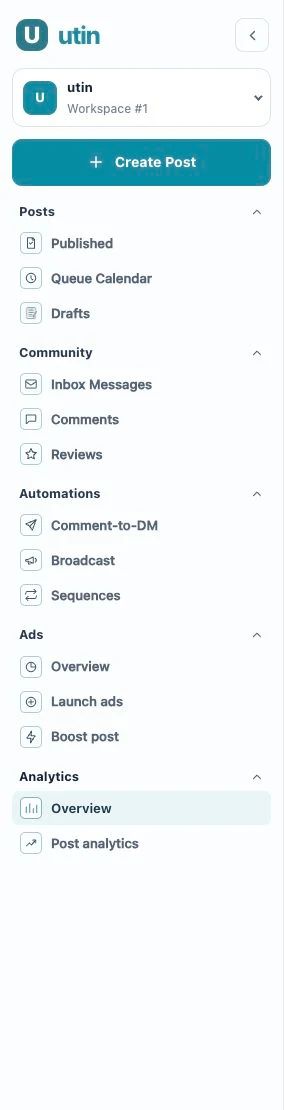
- Each workspace contains its own connected social and advertising accounts.
- An MCP connection follows the access of the user who approved it. A personal access token follows the access of the person who created it.
1. Give workspaces clear names
Use names your team already understands. Adding the brand, market or client can make similar workspaces easier to tell apart.
2. Match permissions to the task
Use a Utin user whose permissions fit the work. This is the user who approves the MCP connection or creates the personal access token. A reporting agent, for example, does not need publishing or member administration access.
3. Manage account connections in Utin
Add or reconnect social and advertising accounts from Add Connections in Utin. The agent will see the accounts available to the Utin user behind its connection.
4. List the available workspaces
Run one instruction to list the companies, workspaces and connected accounts available to the agent.
Prompt to copy
List the companies, workspaces and connected accounts available to you in Utin.
For each workspace, group the social and advertising accounts underneath it.
5. Use a workspace from the list
Choose the workspace you want and include its name in the next instruction. Manage team members, permissions and account connections in Utin.
Good to know
MCP connections and personal access tokens follow the user’s current access and do not have a separate set of permissions. Some company and connection settings are only available in the Utin interface.
If something does not work
- A workspace is missing: check that the connected Utin user can access it.
- An account appears in the wrong workspace: review the account under Add Connections.
- Permission denied: check the connected user’s role and permissions for that company.
What to read next
Return to the agent guide hub and choose what you want to automate next.
Working directly in the app? Read Create and switch companies and workspaces.